Using XNAT§
- How to access the servers: See How to log in.
- Preventing automatic logout: The XNAT server will automatically log you
out after a period of inactivity. The remaining time is shown at the top of
the screen next to
Auto-logout in:. Clickrenewto reset the timer.
How XNAT organises your data§
- Projects: Your study has its own XNAT project containing your data. Some multi-centre studies may have more than one XNAT Project.
- Subjects: Within your project, your data are grouped by Subject (patient). General data about the subject may be stored at the Subject level.
- Sessions: Your imaging or other acquired data are organised into Sessions (also known as Experiments) which are grouped under the the corresponding subject. A session typically represents a single image acquisition but can contain other related data. A session may contain imaging source data files, metadata, processed data and other files. Sessions can also store non-imaging data, such as questionnaires or clinical trial results.
The XNAT home screen§
The XNAT home screen appears when you log in. You can return to the XNAT home screen at any time by clicking the XNAT logo (top-left of screen).
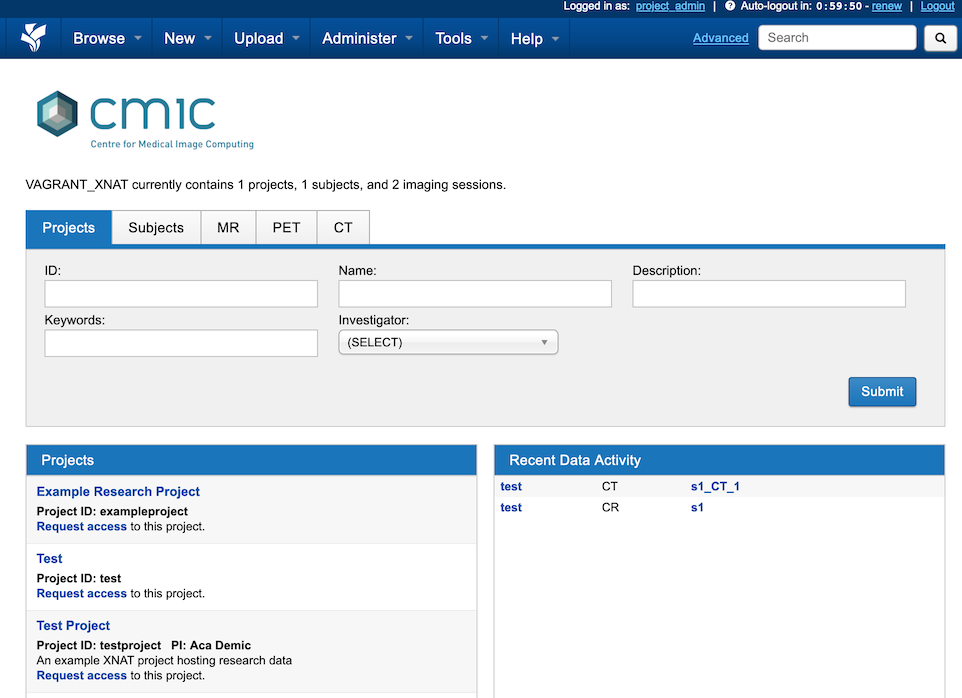
The XNAT home screen shows:
-
A search panel (top part of page), which allows you to find
Projects,Subjectsor specified types of sessions (MR,PET,CTetc) by selecting the appropriate tab. You can search for particular items or create tables and spreadsheets from your data. See Searching in XNAT for more information.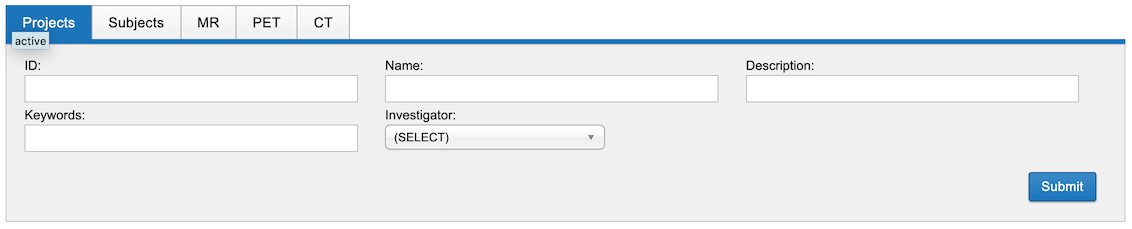
-
Projects (bottom left of page) is a list of all the projects you have access to. Click on a project name to go to the project report page.
- Recent Data Activity (bottom-right of page) tells you which of your projects and sessions have recently been modified. Click on a project or session name to go to the project or session page.
Viewing project information§
The project report page is the home page for your project.
To access the project report page:
- Click on the project name on the XNAT home page to go to your project report page, which is the home page for your project.
- or navigate to a project from the top menu by selecting
Browse>All Projects>(project name)
Project report page§

The project report page contains the following parts:
- Project details
The top panel of the project report page displays project information and
settings. The main project details are shown under the Details tab.
The other options Access, Manage and Pipelines are used for advanced
project configuration. See
Configure XNAT projects
for for information.
- Project contents
The bottom panel shows a table of the subjects and sessions in your project.
If sessions are not visible, click the Add Tab button to add a particular
type of session to the table. Click on a subject or session name to go to the
subject or session report page.
You can show or hide additional data columns in the table. You can also sort or filter the data and export the resulting table as a spreadsheet. See XNAT Data tables and exporting spreadsheets for more information.
- Project Actions menu
At the right of the page is an Actions menu which contains useful shortcuts
Commonly used items on the actions menu:
- Upload Images displays data upload options - see
Uploading Data
- Add to Favourites will add your project to the Browse >
Favourite Projects menu at the top of the screen
- Download Images downloads project imaging data - see
Downloading data from your project
Other items on the actions menu:
- Add allows you to manually creates subjects and sessions. For many
projects this will not be required as your uploading process will manage
this - see Uploading Data
- View Prearchive - not relevant for most projects- see
Advanced data import configuration
- Download XML downloads the project metadata as an XML file
- Manage Files may be used if you wish to store resource files at the
project level. In many cases it is more appropriate to store such files
under a relevant session, in which case you should navigate to the session
first before selecting Manage Files. See
Uploading data to your project
- Project Settings is for advanced configuration of XNAT plugins (Xsync,
Container Service)
Viewing subject information§
The subject report page is the home page for a particular subject. It allows you to view and modify details about that subject and access the associated sessions.
To access a subject report page:
- From your project home, click the subject name under the
Subjectstab at the bottom of the page - Alternatively, from the top menu, click
Browse>Data>Subjectsand select the subject from the list
Subject report page§
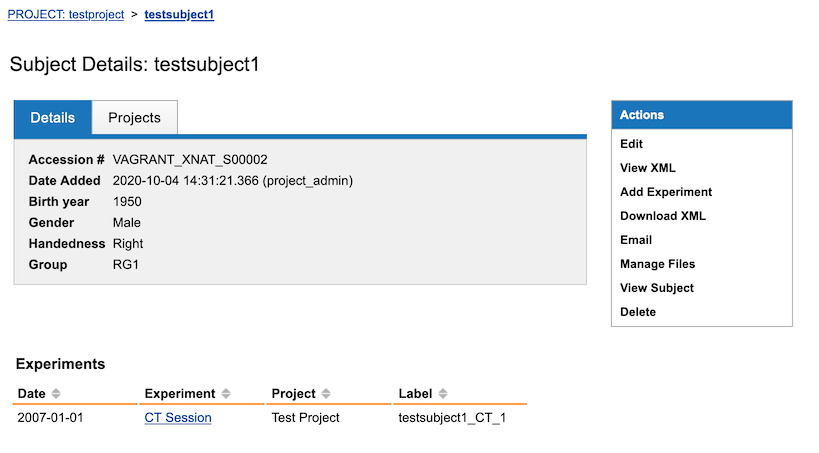
The subject report page shows the following:
- Details shows information (metadata) about this subject. You can modify
this information if you have permission using using
Editfrom theActionsmenu on the right. -
Custom Variable sets (if visible) shows additional information (metadata) about this subject. These are custom data fields specific to your project. You can modify this information if you have permission using using
Editfrom theActionsmenu on the right. The project administrator can add additional custom fields here -
Experiments shows a list of sessions (also called experiments) for this subject. Click on an experiment name to show the session report page.
-
Actions is a menu containing useful shortcuts:
View Subjectlaunches the OHIF Viewer to visualise the subject dataEditis used to modify the subject detailsView XMLdisplays the subject metadata on screen in XMLDownload XMLdownloads the subject metadata as an XML fileManage Filesis for storing additional files that relate to the subject but not to any specific imaging sessions. In most cases you should instead store files in a relevant session. You would do this by going to the session and clickingManage Filesfrom there
Viewing session information§
The session report page is the home page for a session (also known as experiment), which typically represents a data acquisition. A session may contain imaging data, processed data results, and associated data and files.
To view the session report page:
- From the subject report page for that subject, click the session name under
the
Experimentslist at the bottom of the page - Alternatively, from the top menu, click
Browse>Data>(Session type)and click on the session label from the list
Session report page§
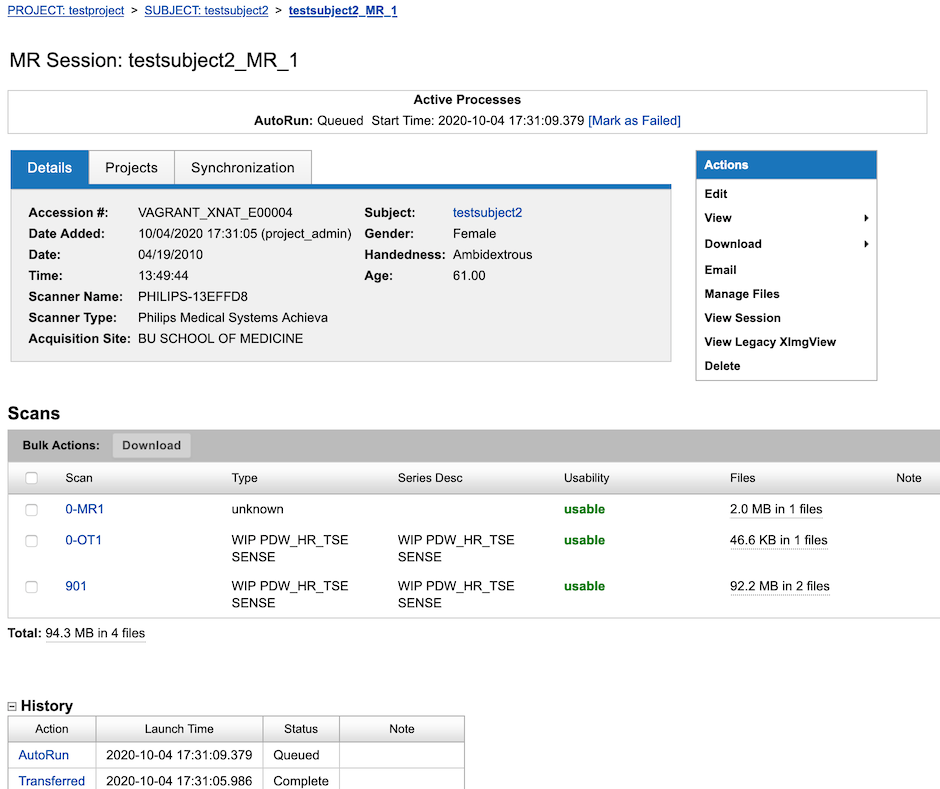
The session report page shows the following:
- Details shows information (metadata) about this session. You can modify
this information if you have permission using using
Editfrom theActionsmenu on the right. -
Custom Variable sets (if visible) shows additional information (metadata) about this session. These are custom data fields specific to your project. You can modify this information if you have permission using using
Editfrom theActionsmenu on the right. The project administrator can add additional custom fields here -
Scans shows a list of image scans within this session. Click on a Scan name to show additional scan metadata. DICOM tags can be shown by clicking on the scan and then selecting
View DICOM Headers. -
You can download particular scans by enabling the checkbox next to the desired scans and clicking the
Bulk Actions: Downloadbutton -
History Click the
[+]button to show details of the creation and changes to this session. -
Actions is a menu containing useful shortcuts:
View Sessionlaunches the OHIF Viewer to visualise the session dataDownload > Download Imagesallows to to download the images for this sessionView > XMLdisplays the subject metadata on screen in XMLDownload > XMLdownloads the subject metadata as an XML fileManage Filesis for storing additional files that relate to the session. See Working with data for more information,
Viewing scan information§
From the session report page you can click on a scan name to show more information about a scan.
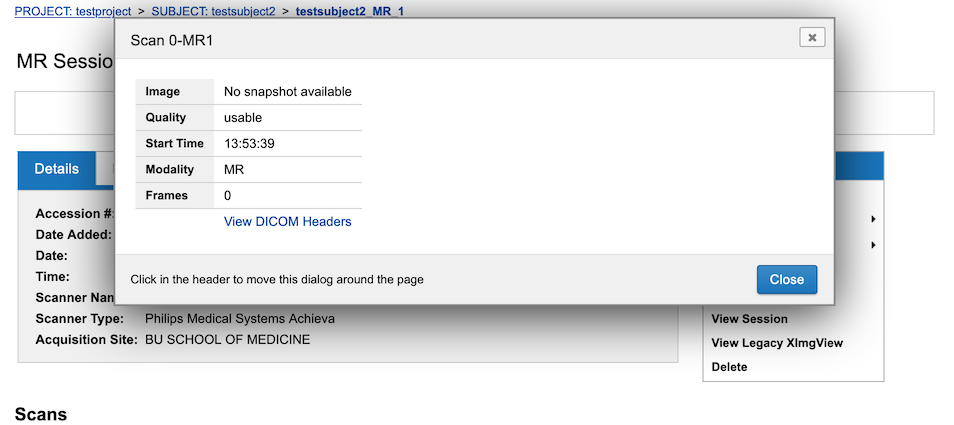
This information is normally generated by custom upload and processing pipelines.
Viewing DICOM headers for a scan§
You can display the DICOM headers for a scan.
- View scan information as described above
- Click on
View Dicom Headersat the bottom of the scan information window to display all the DICOM header tags.
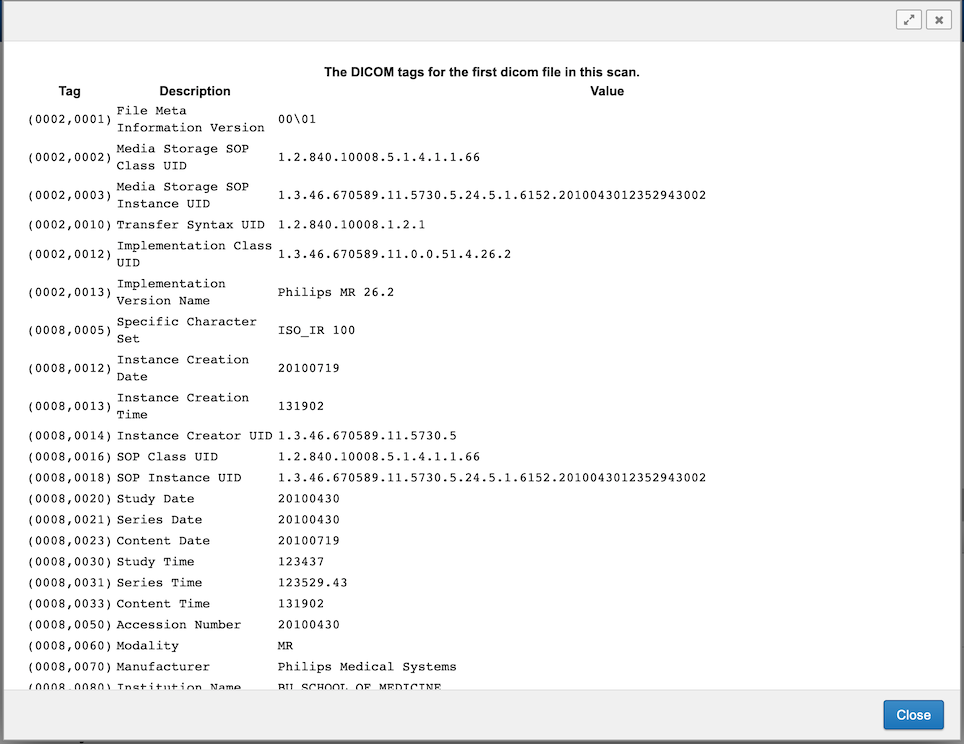
Note this will show you representative headers for the whole scan and will not show you values that change between slices.